Table of contents
Google Analytics is undoubtedly a fundamental tool for analyzing traffic to our website and obtaining essential information such as acquisition channels and user behavior. Despite the latest version of Google Analytics (GA4) automatically filtering out a good portion of traffic generated by known bots and spiders, it can happen that your account still records visits from spam referrals, which are “fake” visits from automated systems and not from real users. Ignoring this issue can lead us to base our decisions on completely unreliable data that can harm our business.
Let’s see how to identify spam traffic and remove it from our Analytics reports.
What are the types of spam in Google Analytics and how to recognize spam referrals
Spam traffic in Google Analytics can be generated by both “ghost referrals” and spam crawlers:
- “ghost referrals,” which constitute the majority of spam, never visit the site or interact with it, but they send fictitious data directly to Google Analytics;
- spam crawlers, on the other hand, are software programs that navigate our site, altering the data in the reports.
How can we tell if our Google Analytics is recording spam visits? The best solution is to analyze the list of referrals in the acquisition channels (Report > Acquisition > Traffic Acquisition): to view it, simply change the main dimension of the table to “Source / Medium” and filter the table by “referral“.
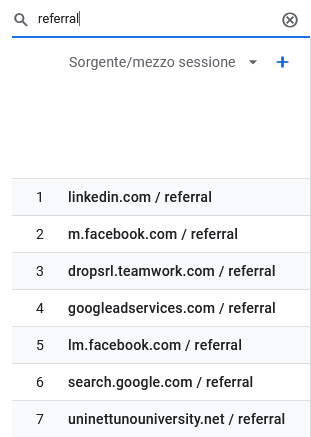
Once you have the list, pay special attention to the following information:
1. Source Name
At first glance, it’s easy to identify spam referrals with “suspicious” names like “buttons-for-your-website.com“, “election.interferencer.ru” or “free-share-buttons-eee.xyz“.
2. Behavior
Equally important is analyzing metrics related to behavior, as most ghost referral visits are characterized by a 100% bounce rate, 1 page view per session, and an average session duration of zero.
3. Hostname
Finally, by adding Hostname as a secondary dimension, we can easily identify which referrals link to hosts that are not related to our site in any way or that are “not set.”
If the analysis of referrals leads us to identify spam traffic, we’ll need to create a filter to exclude these sources of traffic. Let’s see how to do it.
Step 1 – Identify spam traffic sources
First, you need to tell Google Analytics which traffic sources to consider spam. To do this, access the Administration panel and go to Events > Edit Event:
- in the “Match Conditions” section, add the “source” parameter, select the “contains” operator, and indicate the identified spam traffic source as the value, such as “trafficbot4free.xyz”,
- in the “Edit Parameters” section, add the “traffic_type” parameter and set “spam” as the new value;
- you can name the edit “Spam Domains” or any other name that helps you identify what you’ve done.
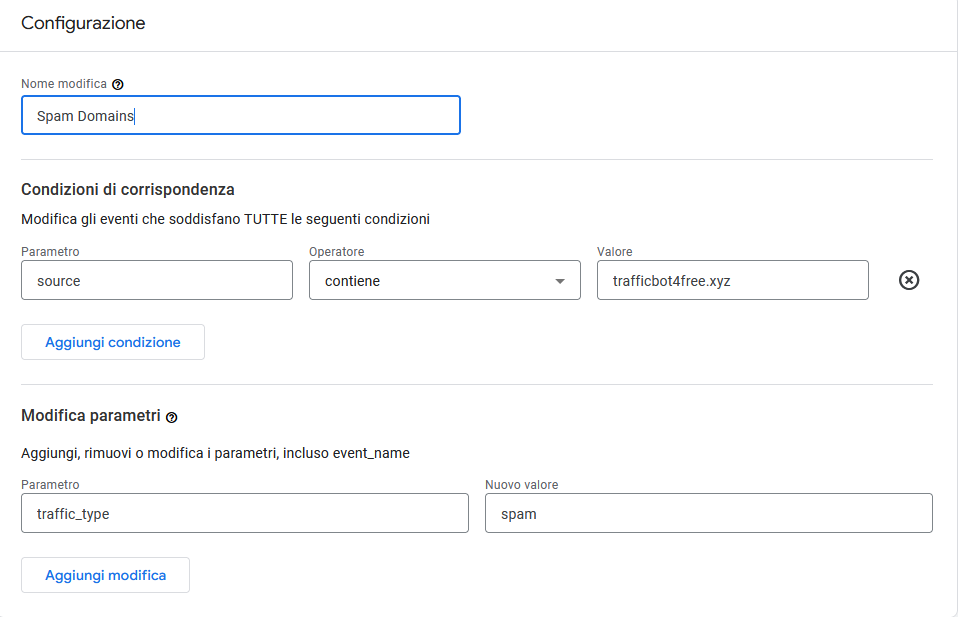
If you have a list of spam sources, not just one, you’ll need to create a new event edit for each individual source.
Alternatively, in the “Match Conditions” section, you can use the “matches regex” operator and set a regular expression value that includes all the sources you want to exclude. Remember to update the regular expression if your Analytics records visits from new spam sources.
To create a regular expression, keep in mind that:
- you need to add a backslash (\) before the dot or other metacharacters like hyphen or asterisk to ensure they are interpreted literally;
- you need to separate the various domains with a vertical bar (|) to create an OR match (Note: Do NOT add a vertical bar at the end of the regular expression, or all sources will be excluded!).
For example, if you want to exclude the domains seo-button.com and free-fb-traffic.com, you should use the following regular expression:
seo\-button\.com|free\-fb\-traffic\.com
Refer to the Google Guide for more information on regular expressions.
Step 2 – Create a filter to exclude visits from spam sources
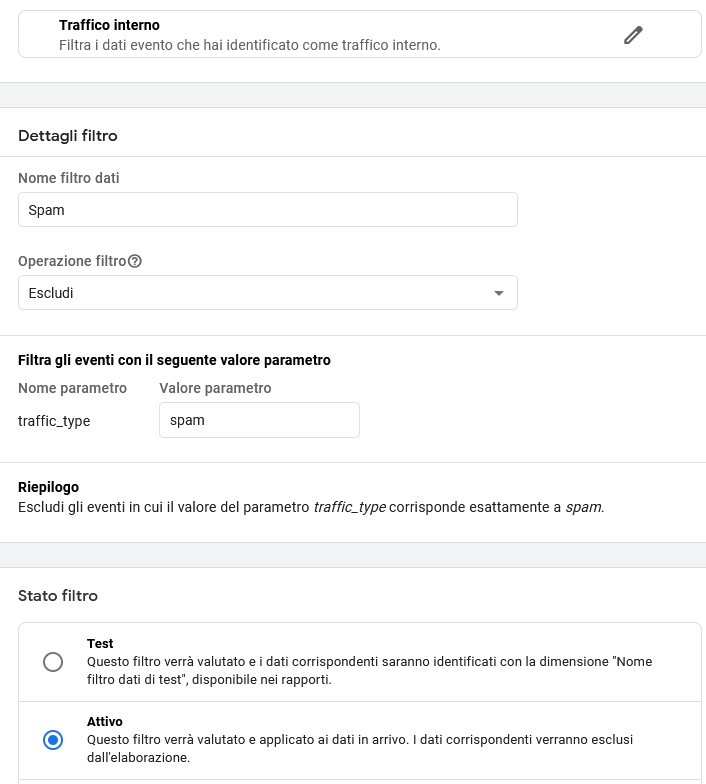
Next, you need to create a filter that tells Google Analytics to exclude traffic from the sources you’ve identified as spam. To do this, access the Administration panel and go to Data Settings > Data Filters > Create Filter:
- select the filter type “Internal Traffic“;
- choose “Exclude” as the filter operation;
- in the “Filter events with this parameter value” section, select the “traffic_type” parameter and enter “spam” as the value;
- set the filter status to “Active“;
- rename the filter “Spam” (or any other name that helps you identify it).
What about historical data?
We have now activated filters that, while eliminating future spam traffic, cannot “clean up” historical data. If you want to analyze the data from various Analytics reports while excluding spam traffic, you can:
- access the report you’re interested in, such as “Traffic Acquisition,” and click on “Add a Comparison” at the top,
- choose “Exclude” as the condition,
- select the dimension “Source/Medium”,
- add a checkmark next to the sources of spam traffic (e.g., “trafficbot4free.xyz”),
- click “Apply.”
Once you’ve saved the comparison, you can view the report data without the spam traffic.
Common mistakes
1. Using the unwanted referral exclusion
To remove spam traffic from Google Analytics, you should use filters, not the unwanted referral exclusion, which serves a different purpose: spam visits would still be counted and attributed to direct traffic instead of referral traffic.
2. Using the .htaccess file to exclude ghost referrals
The .htaccess file can be used to block some crawler spam but not ghost referrals since, as explained at the beginning of the article, they send fictitious data directly to Analytics without visiting our site.
Useful links
Below are some useful links. Remember that before excluding suspicious traffic sources, it’s necessary to ensure they are indeed spam!
Table of contents