
Table of contents
Are you looking for a way to analyze the visibility and performance of your website on Google? In this guide, we will explore how to do it using Search Console, the free tool offered by Google to website owners.
Google Search Console: What is it?
Known as “Google Webmaster Tools” until 2015, Google Search Console is a completely free Google tool that allows you to analyze and manage the presence of your website in the search engine and resolve any indexing issues.
Google Search Console: Who is it for?
Thanks to its various features, Google Search Console is extremely useful for anyone who owns a website, whether they are non-specialized individuals or more experienced professionals. This tool can provide valuable insights not only to an SEO consultant, a web designer, or a UX designer but also to a marketing manager of a company or a business owner who wants to get an overview of their website.
Our digital agency uses this tool daily, not only to conduct SEO analysis but also to monitor the performance of the websites we create and to gather useful insights for optimizing Google Ads campaigns.
How to Access Google Search Console
To view data in Google Search Console, you will need to complete a verification process to confirm that you are the owner of the website.
To do this, you’ll need to:
- Access the Search Console homepage using a Google account.
- Enter your website’s URL.
- Select one of the various verification methods proposed:
- Upload an HTML file to the location where your website resides
- Add a meta tag to the “head” section of your website’s homepage
- Use your Google Tag Manager or Google Analytics account
- Configure a DNS record for your domain
Once the verification process is completed, you can access the Search Console property and start viewing your website’s data.
How to Analyze a Website with Google Search Console
Let’s look at some insights for analyzing your website with Google Search Console and managing its presence on Google.
1. How can I get an overview of my site’s presence on Google?
2. How can I find out for which searches my site appears in Google results?
3. How can I discover keywords and pages on my site with good potential?
4. How can I find out if some pages on my site have experienced a drop?
5. How can I request Google to index a new or updated page?
6. How can I facilitate the indexing of the entire website?
7. How can I resolve any scanning and indexing errors on my website?
8. How can I optimize the User Experience of my website with Google Search Console?
9. How can I resolve any security issues on my site?
10. How can I analyze the backlinks to my site?
1. How can I get an overview of my site’s presence on Google?
By selecting the “Performance” menu item, you can immediately see some fundamental information regarding your website’s presence on Google:
– the number of times users clicked to access your site from Google search results (Total clicks);
– the number of times your site appeared in Google search results (Total impressions);
– the average click-through rate (CTR), which is the ratio of clicks received to the number of times your site appeared in Google results (Total clicks / Total impressions)
– the average position of your site in search results (1-10 = first page of Google results; 11-20 = second page; 21-30 = third page, and so on).
Through the line chart, you can see the trend of these metrics over time. The default time range covers the last 3 months, but you can modify the reference period by clicking on the “Date” option at the beginning of the page.

2. How can I find out for which searches my site appears in Google results?
Access the “Performance” section of Google Search Console, and you’ll see a table immediately below the line chart. By selecting the “Query” option, you can view the list of searches for which your site appeared in Google results.
You can choose what information to display for each keyword by clicking on the labels above the chart (Total clicks, Total impressions, Average CTR, and Average position).
By clicking on the column headers, you can change the table order and discover, for example:
– which user searches brought the most traffic to your website (sorting by decreasing clicks);
– which searches have the highest number of appearances of your site in Google results (sorting by decreasing impressions).
If you select the “Pages” option above the table, you can find out which pages of your site have greater visibility on Google and which bring more traffic to your website.

3. How can I discover keywords and pages on my site with good potential?
It’s possible that your site is on the second page of Google results for highly searched keywords. Through targeted SEO optimization, you could potentially move your site to the first page of results for these searches, increasing traffic from Google to your site.
To discover keywords with this potential:
– access the “Performance” section of Search Console;
– ensure that the labels “Total impressions” and “Average position” are selected;
– click on the “Query” option in the table;
– identify keywords that have both a high number of impressions and an average position between 10 and 20.

By clicking on the keyword of interest and selecting the “Pages” label above the table, you can find out which page of your website is ranking for that keyword and could be optimized.

4. How can I find out if some pages on my site have experienced a drop?
The “Performance” section of Google Search Console also helps you discover whether certain pages of your website that had good Google rankings have experienced a decline over time.
To retrieve this information:
– click on “Date” (above the labels with the main metrics) and then on “Compare”;
– select “Compare the last 3 months with the previous period” or “Compare the last 6 months with the previous period,” based on your needs;
– ensure that the “Total clicks” label is selected;
– click on the “Pages” option in the table;
– sort the table by click difference (ascending).
The top pages on the list are the ones that have experienced the greatest drop in traffic from Google and may require optimization or updates.


5. How can I request Google to index a new or updated page?
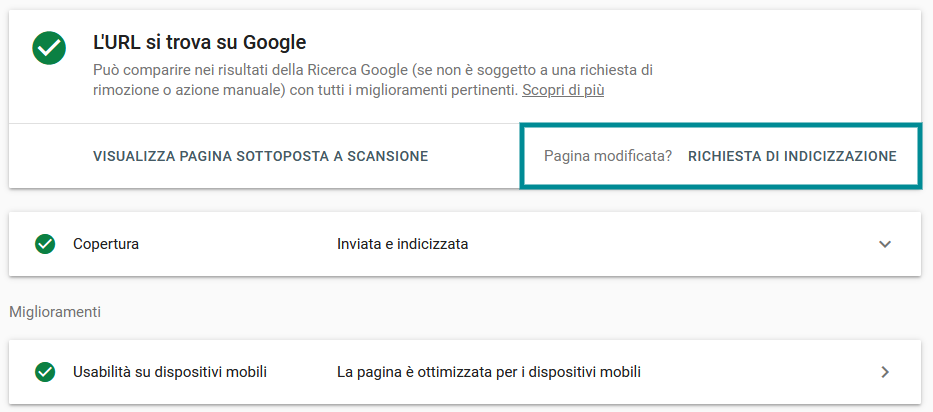
Have you added a new page to your site or updated an existing page? You can request Google to index it using the “URL Inspection” tool in Search Console.
By selecting the “URL Inspection” menu item, you’ll be prompted to enter the URL of the page, and you can find out whether the page has been properly scanned and indexed by Google. To request indexing, simply click the “Request indexing” option.
6. How can I facilitate the indexing of the entire website?
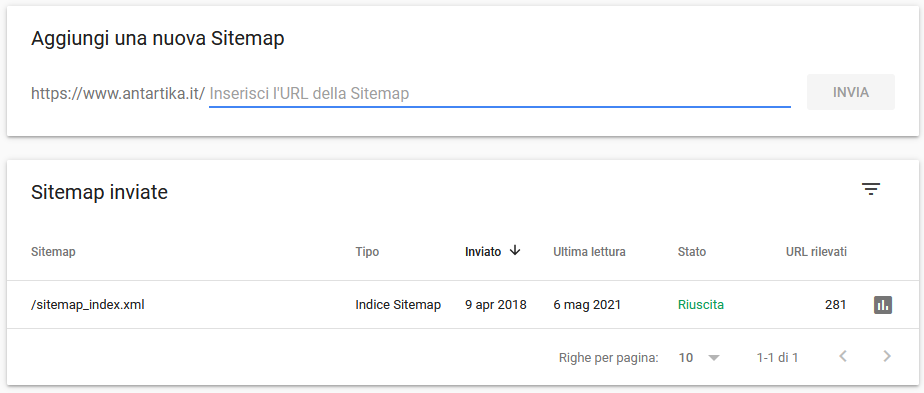
To help Google properly scan and index your website, you can create a sitemap and upload the XML file to your website.
Once the sitemap is uploaded, access Google Search Console and select the “Sitemap” menu item. Here, you can input the sitemap’s URL and submit it.
7. How can I resolve any scanning and indexing errors on my website?
Thanks to the “Coverage” page of Search Console (within the “Index” section), you can ensure that Google can correctly access all pages of the website and explore any issues encountered during site indexing.
Specifically, Google Search Console lists:
– Pages with Errors, meaning those that could not be indexed;
– Valid pages with warnings, meaning those that have been indexed but present problems;
– Valid pages, meaning those that have been correctly indexed;
– Excluded pages, meaning those intentionally not indexed.
You can consult Google’s official guide to learn more about the various warning messages you’ll find in this section.
8. How can I optimize the User Experience of my website with Google Search Console?
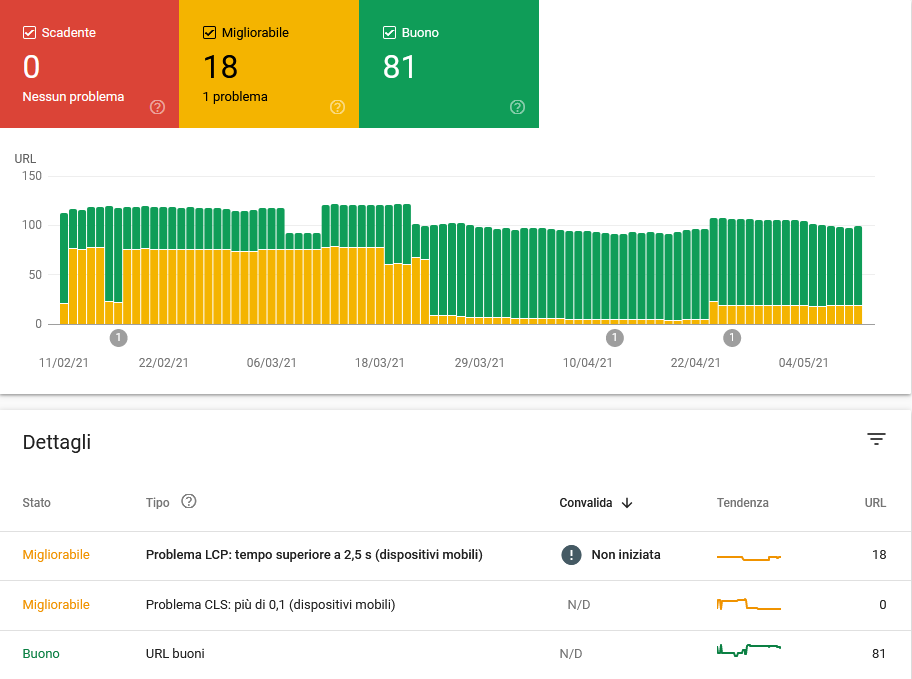
User Experience is an increasingly important factor in the ranking of a website on Google. For this reason, within the “Experience” section, Google Search Console provides a series of tools that can help you optimize the user experience on your website.
For instance, the reports within the “Core Web Vitals” page evaluate the speed, interactivity, and visual stability of pages during their loading, allowing you to identify any URLs with poor performance.
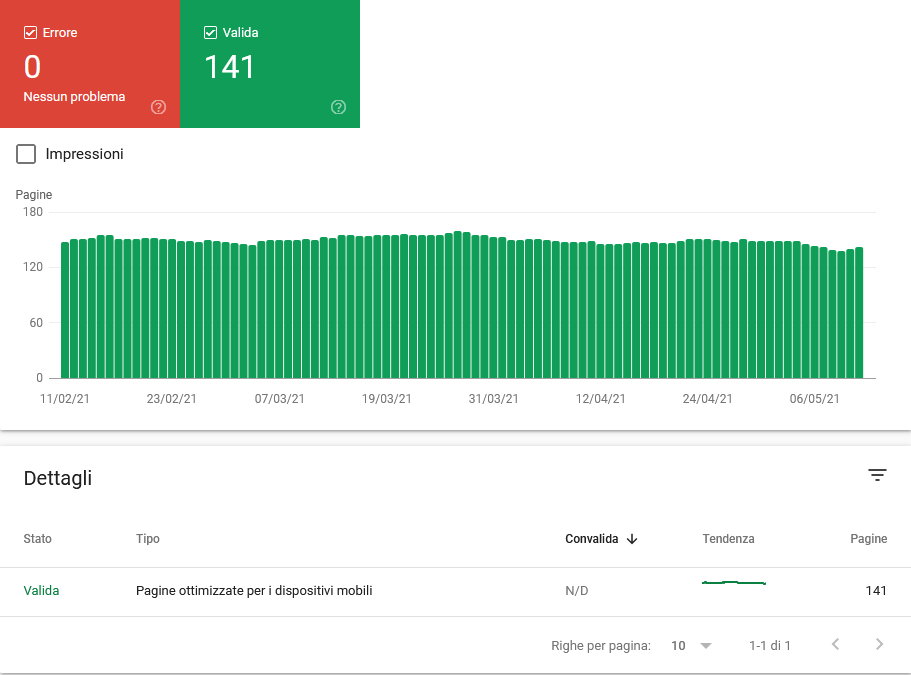
The “Mobile Usability” page ensures that all website pages are optimized for mobile navigation.
9. How can I resolve any security issues on my site?
Through the reports in the “Security & Manual Actions” section of Google Search Console, you have the ability to find out:
– if there are any manual actions (reports of violations of quality guidelines) on your site;
– if Google has detected security issues on your site, such as dangerous or compromised content.
In both pages, you can view details of the detected problems and receive guidance on how to resolve them. You’ll also have the option to request a review once the problem is resolved.
10. How can I analyze the backlinks to my site?
The “Links” section of Google Search Console allows you to analyze the backlinks to your website.
For example, to discover which pages of your site receive the most backlinks:
– select the “Links” menu item;
– go to the “External links” > “Top linked pages” section and click on “More”.
This way, you will see the list of your site’s pages ordered by the number of incoming links.

To find out which websites link to yours:
- select the “Links” menu item;
- go to the “External links” > “Top linking sites” section and click on “More”.
This way, you will see the list of websites that link to yours, ordered based on the number of links they contain.

Would you like professional support?
Our team of experts is always available to help you interpret Google Search Console data and translate them into an effective strategy. Contact us for more information about the services offered by our communication agency.
Table of contents


