
Table of contents
TLTR
You’ve been handed the finished website, and now it’s up to you to insert the articles and other content onto the site to help it grow even more. However, it’s not enough to just write a text and choose a representative image; you also need to manage paragraphs, links, and select titles. Let’s go through the best practices for adding content to your website.
Introduction – Another Pixel in the Wall (of Text)
“All in all it’s just another brick in the wall
All in all you’re just another brick in the wall
We don’t need no education
We don’t need no thought control“
Unlike what Pink Floyd sing, a bit of education is recommended for adding content on the web. The goal of this article is not thought control, but to prevent you from becoming “another pixel in the Wall of Text,” or, in plain terms, to help you avoid creating walls of text or other errors that could penalize your site, “pixel by pixel.”
Let’s start with an example:

This image represents a Wall of Text (WoT), meaning a very long text written without considering its effect on web users.
Various studies show that people on the web rarely read paragraphs in their entirety; instead, they scan the text in an F-shaped pattern: they start from the first line in search of important information, move to the second line, and then continue vertically to find more crucial information.
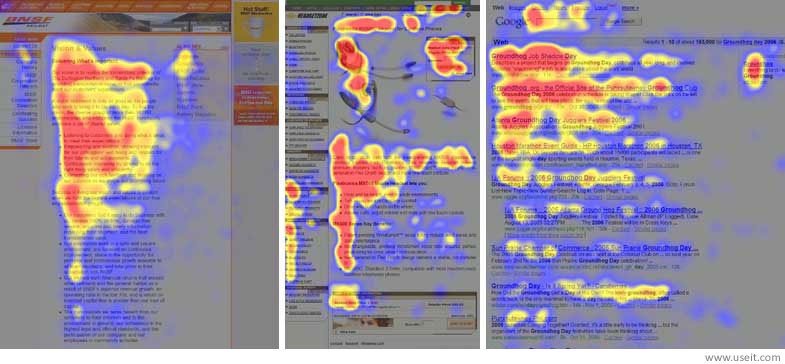
Because of this, it’s important to format the text so that important information is visible at a quick scan and then for more in-depth reading.
Pixel I – How to Avoid Walls of Text
To avoid walls of text, the best practices to adopt are quite simple:
- Divide paragraphs by breaking lines.
- Insert titles for paragraphs (usually h2 and h3) to separate them further.
- Use bold and italics where needed to highlight important words or concepts.
- Utilize bullet or numbered lists for listing items.
- Put quotations in quotation marks (perhaps with a specific graphical style).
Another recommended practice is to avoid writing titles or text directly in CAPS LOCK.
This isn’t to avoid walls of text but to align with the requirements of screen readers. People with visual difficulties use these reading tools, which are programmed to read uppercase letters letter by letter, similar to spelling.
So, if you had this word: “UPPERCASE” read by a screen reader, the word would be pronounced as “u-p-p-e-r-c-a-s-e” rather than “uppercase.” Not exactly the most accessible approach for those who rely on these tools.
The solution to this problem isn’t complex: you can use the features of your site’s visual text editor (if it allows this function) or employ a small CSS rule (i.e., text-transform: uppercase) that can be implemented by the developer or agency that built the site.
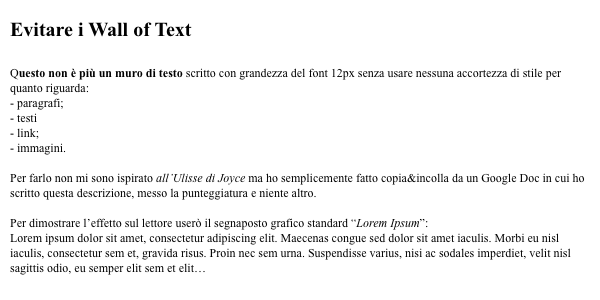
By following these rules, the proposed text above becomes more immediately scannable and “less tiring”:
Pixel II – How to Manage Links to Other Pages
Including links to connect various pages is a good practice for SEO (Search Engine Optimization), but should all links be treated the same way? The answer is no; we recommend making a distinction:
- Links to pages on your own site.
- Links to PDFs or pages on other websites.
Links to Pages on Your Own Site
For links to pages on your own site, we recommend opening the link in the same browsing tab, like this.
Links to Pages on Other Sites or PDF Links
For links leading to a PDF or an external website, we recommend opening the link in a new tab (using target=”_blank”), so users won’t be taken away to other sites. For example, like this.
There are various opinions on how to handle links, but for SEO purposes, this treatment is arguably the best.
Pixel III – How to Manage Images
Images relevant to your content are a good way to enrich your content within your content.
However, excessive use or failure to optimize images results in pages or sites requiring too much data for download, which can slow down the site.
That’s why the advice is to optimize the size, weight, and format of images using specific software like Photoshop or Squoosh.
Lastly, to accommodate screen reader users, it’s mandatory to add an alt text that describes the image so that those who can’t see or download it can at least listen to it through these tools.
Pixel IV – How to Manage Video Uploads
Videos are a significant medium in digital communication, but they should be used judiciously to prevent drastically slowing down your site.
To avoid reaching the hosting space limits, it’s better not to save videos directly on your site but to upload them to dedicated platforms like YouTube or Vimeo and embed the videos on your pages.
Pixel V – How to Manage Titles
A common oversight is not paying attention to page or blog article titles.
Writing a title that’s too long isn’t effective—it doesn’t encourage reading the content and can create problems when creating links to the page or article.
That’s why the advice is to summarize as much as possible, be concise and direct.
Conclusion – No More Misplaced Pixels
By adopting these techniques for your future site content, you’ll undoubtedly avoid creating a wall of text that drives readers away.
If you need more precise consultation to break down your walls or want to start a new web project, don’t hesitate to contact us via email at this address:
web@antartika.it
And now that you know how to face walls:
Hey teacher, leave those kids alone!
Table of contents


