Table of contents
When analyzing the performance of a website in Google Analytics, one of the metrics that receives a lot (perhaps too much) attention is the bounce rate.
While the tendency is to celebrate when this value decreases, it’s often forgotten that even a very low bounce rate (typically below 10%) should be considered a red flag: in most cases, it indicates that Google Analytics hasn’t been implemented correctly.
Let’s explore how to handle this situation and address any tracking issues.
A Quick Review: What Is Bounce Rate?
The bounce rate in GA4 indicates the percentage of sessions without engagement.
A session with engagement is a session that
- lasts more than 10 seconds, or
- contains a conversion event, or
- records two or more page views.
If a session doesn’t meet any of these criteria, it’s considered a bounce.
In Universal Analytics (the version of Analytics discontinued in July 2023), the bounce rate was calculated differently and represented the percentage of sessions where users viewed only one page and triggered only one Analytics server request, leaving the site without interacting with the page or taking any further actions.
For this reason, sessions where users examined a website page for several minutes but left without triggering interaction events (e.g., clicking on links, downloading a PDF document, viewing an embedded video) were misleadingly counted as bounces.
Bounce Rate Below 10%: Is It Really Good News?
Is your Analytics recording an extremely low bounce rate, close to zero? Considering the definition seen above, it would be natural to think that this is an excellent result for your website and your marketing activities.
Unfortunately, that’s not the case: quite often, a bounce rate below 10% indicates incorrect Analytics implementation.
The primary cause of this issue could be the sending of a double page view, caused by inserting duplicate Analytics tracking codes.
Let’s delve into the steps to resolve this issue.
Step 1) Check for Double Page View at the Start of the Session
The most common cause of a very low bounce rate is the presence of a double Google Analytics tracking code on the pages, resulting in the sending of a double page view at the start of the session.
This means that when a user accesses the site, 2 page views are sent to Analytics instead of one. As a result, the session won’t be considered a bounce, even when the user immediately leaves the site. Needless to say, this error will also affect other Analytics metrics beyond the bounce rate, such as page views or pages per session, yielding inaccurate values.
The simplest way to check if a double page view is being sent is to use Google Analytics 4’s Debug tool: it’s a tool that allows you to verify that tracking works and that events are correctly recorded by Analytics.
To check if your site is recording a double page view:
1-Open the DebugView tool in GA4
Access your Google Analytics account and go to the Admin panel > Property > DebugView.
2-Activate the debug mode
To use the tool, you need to activate the debug mode in one of these two ways:
- use the Google Tag Manager Preview: access your GTM account, click on “Preview” in the upper right corner, and start the debug by connecting your website;
- download the “Google Analytics Debugger” Chrome extension: install the extension on Chrome, access your website, and click the extension icon to start it (the icon will display “ON”).
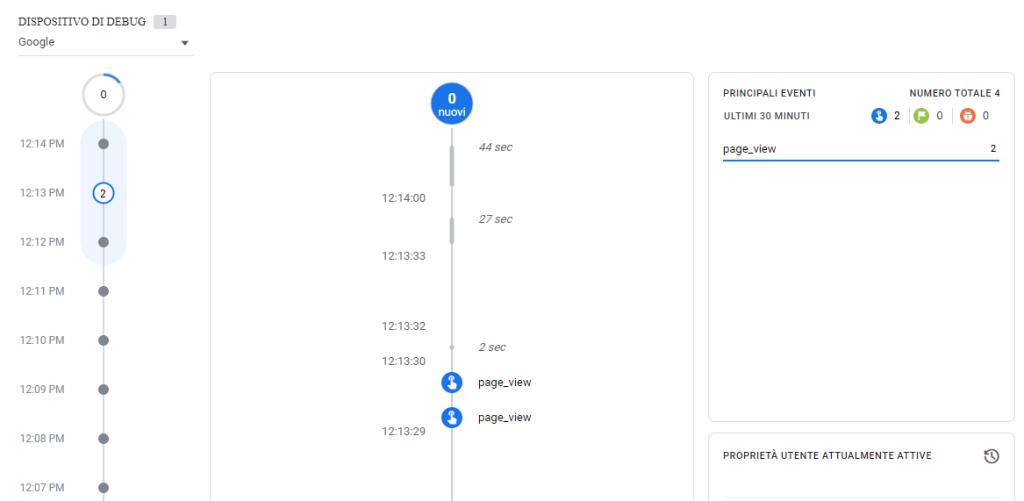
3-Check the registered page_view event
After a few seconds, the page_view event, which Analytics records when a page of your website is viewed, will appear in the DebugView tool.
If you see two page_view events appear during the viewing of the first page instead of just one, as shown in the image below, it means that a double page view is being sent to Analytics.
Step 2) Remove Unnecessary Code
A very immediate way to verify the presence of duplicate code on a page is to use the Google Tag Assistant extension for Chrome. It’s an extremely useful tool that allows you to check the implementation of various tags on your site, such as Google Analytics, Google Tag Manager, etc.
Once the extension is installed:
- visit your website;
- click on the Tag Assistant extension symbol;

- click on the “Enable” button and reload the page
- once the page is reloaded, open Tag Assistant again
The extension will display the list of detected tags on the website.
If the issue is duplicate code, you should see a warning like “Multiple installations of Global site tag (gtsg.js) detected“.
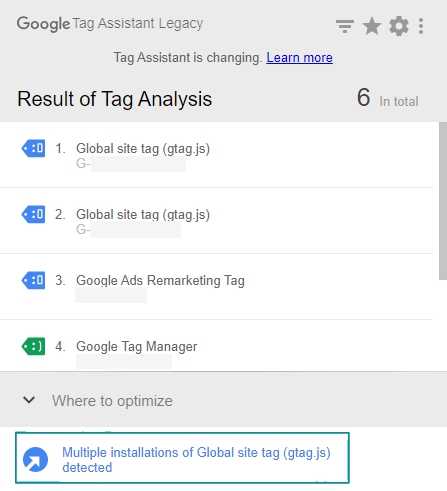
If Tag Assistant shows the message “Multiple installations of Global site tag (gtsg.js) detected,” there are several possible scenarios:
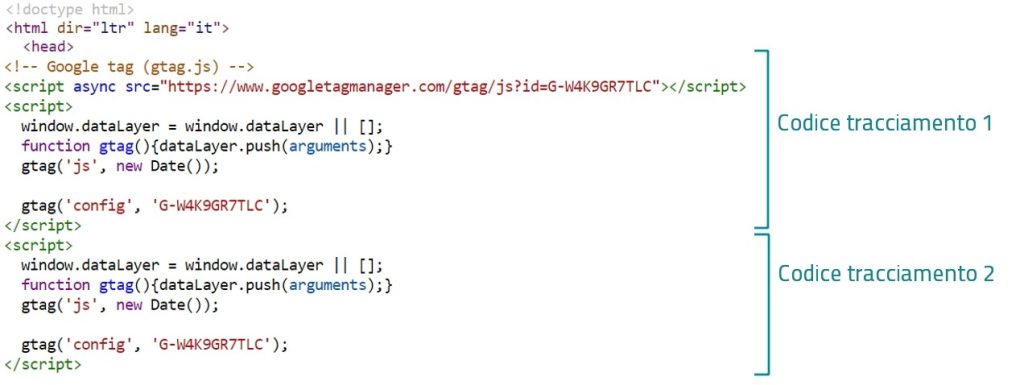
1) Two snippets of code have been inserted for the same Analytics property on every page
While visiting your site, access the source code by right-clicking on the page and selecting “View page source.” Check that the tracking code has been inserted only once (to find it more easily, press CTRL+F on Windows or CMD+F on Mac and search for your Analytics measurement ID, e.g., G-W4K9GR7TLC).
If you see two Google Analytics code snippets, remove the duplicate and keep only one.
2) Different methods of code implementation have been combined
In addition to pasting the snippet directly into your site’s code, it’s possible to implement Analytics tracking through Google Tag Manager or using a plugin.
If you’ve chosen to use one of these methods, make sure to remove the old Analytics snippet from your site’s code: the Google Tag Manager tag or the plugin should suffice for tracking.
In Conclusion: Understanding Bounce Rate
Although bounce rate must be evaluated based on the characteristics of the specific site, there are still warning signs that we need to be able to recognize.
We have encountered many new clients who believed that their near-zero bounce rate was a good result, when in fact they were working with distorted data, sometimes for years.
Being able to accurately evaluate Analytics metrics, in addition to eliminating spam traffic, is crucial to obtain accurate data and plan a informed web marketing strategy.
Table of contents